Skip navigation
🎉
New Year Special!|Limited Time 50% OFF!
00:00:00:00

Free Minecraft Pixel Art GeneratorPhoto to Block Art · 60+ Map Colors · Block List Export

Upload any photo and auto-generate a Minecraft pixel art map on a 64×64 grid

60+ map art block colors — matched to the official Minecraft Map Color ID system

Export a complete block material list as CSV in one click

Photo to Minecraft Pixel Art

Convert photos into buildable Minecraft block designs

Example 1/3 Animal

Before

Before

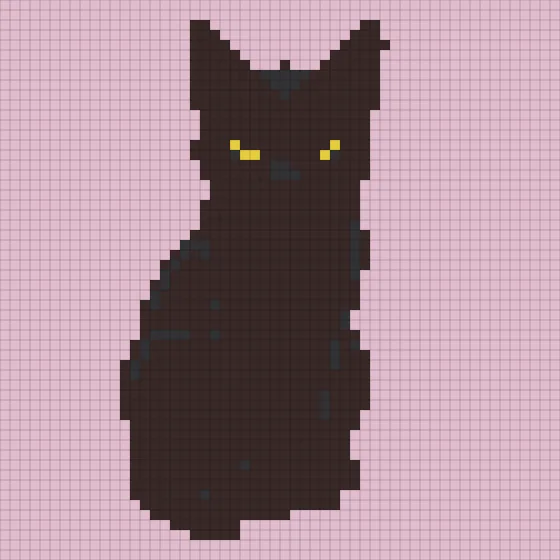
After

After

Original Preview

Click to Upload Image

Supported formats: JPG, PNG, WebP

Minecraft

What Is a Minecraft Pixel Art Generator?

BeadPattern's free Minecraft pixel art generator converts any photo into a buildable block design. It maps your image to the 60+ official Minecraft map art block colors, generates a 64×64 pixel grid — the standard size for one Minecraft map — and exports a complete block material list so you can gather every block you need before you start building.

Common Minecraft Pixel Art Terms

Minecraft Map ArtMap Color IDPixel ArtBlock paletteFlat Map Art3D Map ArtStaircasingSchematicJava EditionBedrock Edition

Why Use This Minecraft Pixel Art Tool?

Built specifically for Minecraft map art builders — not a generic pixel editor.

Official Map Color System

Auto-maps to the 60+ blocks recognized by the Minecraft Map Color ID system for accurate in-game color reproduction.

Block Material List Export

Get an exact block count per type as a CSV file — bring it to your survival inventory or use it for creative planning.

Standard 64×64 Map Grid

Default grid matches a single Minecraft map (128×128 blocks at zoom-out level 0, displayed as 64 pixels), so your art is immediately buildable.

How to Make Minecraft Pixel Art in 3 Steps

1. Upload Your Photo

Upload any JPG or PNG photo — portrait, pet, logo, or simple artwork. The tool processes it instantly.

2. Auto-Generate Your Block Grid

The tool maps your image to official Minecraft map art block colors and builds a 64×64 pixel grid automatically.

3. Download Your Block List

Export a printable pixel art plan and a block material list CSV. Use the list to gather every block before you start building.

Professional Minecraft Pixel Art Generator Features

Official Map Color System

  • 60+ blocks covering all official Minecraft Map Color IDs
  • Covers wool, terracotta, concrete, wood, stone, and nature blocks
  • Color system locked to Minecraft map palette for accurate in-game rendering
  • 64×64 default grid matches the standard single Minecraft map size

Block Material List Export

  • Export a complete block material list as a CSV file
  • Each row shows block name, block ID, and exact quantity needed
  • Sort by quantity — know which blocks you need most at a glance
  • Works for both survival gathering and creative mode planning

Flexible Canvas & Photo Conversion

  • Adjustable grid size: 32×32 / 64×64 / 128×128 for different map scales
  • Photo-to-art conversion optimized for Minecraft's limited block color palette
  • Color merge slider to reduce block variety and simplify construction
  • Manual edit mode to refine individual block colors

Loved by Minecraft Builders

Join thousands of Minecraft map art creators making custom pixel art every day

Alex

Minecraft Map Art Builder

I uploaded a photo of my dog and had a full 64×64 block grid plus a material list in minutes. The block counts were accurate and made the gathering phase so much faster.

Verified User

Jordan

Creative Mode Builder

The color matching is spot-on for map art. I've tried other tools that use non-map colors, but this one only uses blocks that actually show on a Minecraft map. No more invisible colors.

Verified User

Maya

Survival Minecraft Player

Made a pixel art portrait of my character for my base. The block material list told me exactly what to farm, and I built it in survival without a single wasted trip.

Verified User

Sam

Minecraft Content Creator

I build massive pixel art for my YouTube channel. Generating a block list in seconds instead of hours of manual counting has completely changed my workflow.

Verified User

Riley

Server Admin

We use BeadPattern to plan pixel art builds for our server's spawn area. The printable grid keeps all our builders in sync and the CSV makes material planning a breeze.

Verified User

Chris

Bedrock Edition Player

Works perfectly for Bedrock map art too. The color system matches exactly what shows on the in-game map, so what you see in the tool is what you get in Minecraft.

Verified User

Pricing

Choose the plan that fits your creative needs

Starter

Free

Basic features for getting started

$0Free forever
Core features
  • Max side 50 pixels
  • 5 color systems
  • Custom palette
Free limits
  • Export with watermark
  • 3/mo downloads (login required)
Subscription

Pro

No watermark + Unlimited downloads + Cloud sync

$4.98
$2.49/mo
Billed $29.90/yearSave $5.98
Core features
  • Max side 300 pixels
  • 5 color systems
  • Custom palette
Unlocks
  • Export without watermark
  • Unlimited downloads
  • 500 projects
  • Cloud sync
One-time

Lifetime

One-time purchase, same features as Pro

$79.80
$39.90one-time
Core features
  • Max side 300 pixels
  • 5 color systems
  • Custom palette
Unlocks
  • Export without watermark
  • Unlimited downloads
  • 500 projects
  • Cloud sync

Payments on beadpattern.net are securely processed by Stripe.

Professional human support is available 24/7, and emails are answered within 1 business day.

To cancel a subscription, ask billing questions, or change plans, contact support@beadpattern.net

Minecraft Pixel Art Generator FAQ — Everything You Need to Know

1. What is a Minecraft pixel art generator?

A Minecraft pixel art generator converts a photo into a block grid where each cell equals one Minecraft block. The tool maps your image to the closest in-game map art block colors and outputs a pixel art plan plus a block material list. BeadPattern uses the official Minecraft Map Color ID system so every color in your design is buildable in the real game.

2. Is this Minecraft pixel art generator free?

Yes. You can upload a photo and generate a full Minecraft block pixel art plan for free. No account required to get started. Premium features like high-resolution export and AI pattern generation are available on paid plans.

3. Does this work for Java Edition and Bedrock Edition?

Yes. The Map Color ID system is consistent between Java and Bedrock editions for flat map art. The block palette and color IDs used by BeadPattern are compatible with both editions, so your pixel art will look the same on either platform.

4. How long does it take to build Minecraft pixel art?

Build time varies by size and material availability. A 64×64 design uses 4,096 blocks total. In creative mode with materials ready, experienced builders typically finish in 1–3 hours. In survival, gathering materials first is the main time factor — the block list export helps you plan efficiently.

5. What blocks are used for Minecraft map art?

Map art uses blocks that have distinct colors on the Minecraft map item. The most popular choices include wool (all 16 colors), terracotta (plain and all dyed variants), concrete, wood planks, grass blocks, sand, stone, and specialty blocks like gold, lapis, and emerald blocks. BeadPattern's palette covers all 60+ standard map color IDs.

6. What is the Minecraft Map Color ID system?

The Map Color ID system defines which color each block type appears as when viewed on a Minecraft map item. Each block category is assigned a color ID, and blocks at the same height show as the normal shade. BeadPattern maps every color to its corresponding block ID so your in-game result matches the pixel art preview exactly.

7. How many block colors are available for map art?

BeadPattern's Minecraft palette includes 60+ distinct block colors covering all major Map Color IDs. This includes 16 wool colors, 17 terracotta variants, 16 concrete colors, multiple wood types, stone variants, and special blocks. The full palette is significantly richer than what many generic pixel art tools offer.

8. How do I get the blocks I need in survival mode?

Use the block material list export (CSV) to see exactly which blocks and how many you need. Then prioritize farming: wool requires sheep of specific colors or white sheep plus dye; terracotta is smelted from clay; concrete needs gravel, sand, and dye. Planning your gathering using the list significantly reduces back-and-forth trips.

9. What makes a good photo for Minecraft pixel art?

The best photos have clear subjects, high contrast, and a limited number of dominant colors — portraits, logos, simple animals, or bold landscapes work best. Avoid busy backgrounds and very dark images. The tool's color merge slider can reduce complex images to a manageable palette. Simple, graphic images generally produce the most recognizable block art.

10. What image formats does the tool support?

BeadPattern supports JPG, PNG, GIF, and WebP formats up to 10MB. For best results, use a square or near-square crop with the main subject centered. The tool automatically resizes and pixelates your image to fit the selected grid size.

11. How many different block colors should I use?

For beginners, 8–12 colors is a sweet spot — complex enough to look good, simple enough to build in survival. The color merge slider lets you reduce the palette to your comfort level. Experienced builders or those in creative mode can use 20–30+ colors for more detailed results.

12. Can I edit individual blocks after generating the pattern?

Yes. Use the manual edit mode to click individual cells and change their block color. You can fix specific areas, add detail, or simplify a section without regenerating the whole image. The block material list updates automatically to reflect your edits.

13. What grid size should I choose for my pixel art?

The standard Minecraft map displays 128×128 blocks (at zoom level 0), which BeadPattern represents as a 64×64 grid (2 blocks per pixel). For small art or beginners, 32×32 (showing as 64×64 blocks in-game) is manageable. For large statement pieces, 128×128 requires 16,384 blocks. Start smaller if you're new to map art.

14. What scale does the 64×64 grid represent in Minecraft?

In BeadPattern's default 64×64 grid, each cell represents 2×2 blocks in-game on a standard map (zoom level 0). This means the full design is 128×128 blocks — exactly one Minecraft map. If you select 128×128 grid size, each cell is 1 block, giving maximum detail at 128×128 blocks total.

15. What is the pattern size of a Minecraft map art design?

A standard Minecraft map item shows a 128×128 block area. BeadPattern's 64×64 grid represents this as one map (2 blocks per pixel). The physical size in-game is 128 blocks wide by 128 blocks long. You can combine multiple maps for larger compositions — just export multiple sections and plan the seams.

16. How many total blocks does my pixel art need?

The total block count depends on your grid size: 32×32 = 1,024 blocks, 64×64 = 4,096 blocks, 128×128 = 16,384 blocks. The block material list shows the total at the bottom. For survival mode, a 64×64 design with 10–15 colors typically requires gathering materials from 5–10 different sources.

17. Can I print my Minecraft pixel art pattern?

Yes. Export the pixel art grid as a PNG and print it as a reference sheet. Each cell is color-coded to the corresponding block. This is especially useful when building large designs where you need a bird's-eye reference to check your progress row by row.

18. How do I export a block material list?

Click the export button and select the block material list CSV option. The file downloads immediately and lists every block type, its Minecraft block ID, and the exact quantity needed. Import it into a spreadsheet or checklist app to track your gathering progress in survival mode.

19. Tips for building Minecraft pixel art efficiently?

Start from one corner and work row by row using your printed or on-screen reference. Build at Y=64 (sea level) for flat map art — all blocks should be at the same height. Use a scaffold or flying in creative mode for large designs. Color-sort your inventory to match the palette before building, and check your map item periodically to verify the colors look right.

20. What is the difference between flat and 3D map art?

Flat map art places all blocks at the same Y level and uses the base color of each block type — the most common and beginner-friendly approach. 3D map art (staircasing) uses height variation to produce lighter and darker shades of each color, effectively tripling the color palette. BeadPattern currently supports flat map art (normal shade); 3D staircasing support is planned for a future update.

Start Your Minecraft Pixel Art Now

Convert any photo to a Minecraft block pixel art map — free to use