BeadPattern - A Bead Pattern Generator Built with Love
My girlfriend is a perler bead enthusiast. I love watching her sit at her desk, counting squares on her phone screen one by one, then carefully placing those colorful little beads onto the pegboard. There's something adorable about how focused she gets. But I also noticed her frustrations.
Let's be honest—most bead pattern software out there just isn't that great.
She tried several tools, and every time she ran into the same problems: the generated patterns always had these weird black edges around the borders. The original image would be a clean cartoon character, but the output looked like it was covered in a gray haze. The colors were often way off too—the color codes shown in the software rarely matched the actual beads she bought. And the most frustrating part? After finishing a design, she had to manually count how many beads of each color she needed. For a medium-sized pattern, just counting colors could take half an hour.
As a programmer, I couldn't just stand by and watch. So I started digging into what was actually wrong with these tools, and then I built my own.
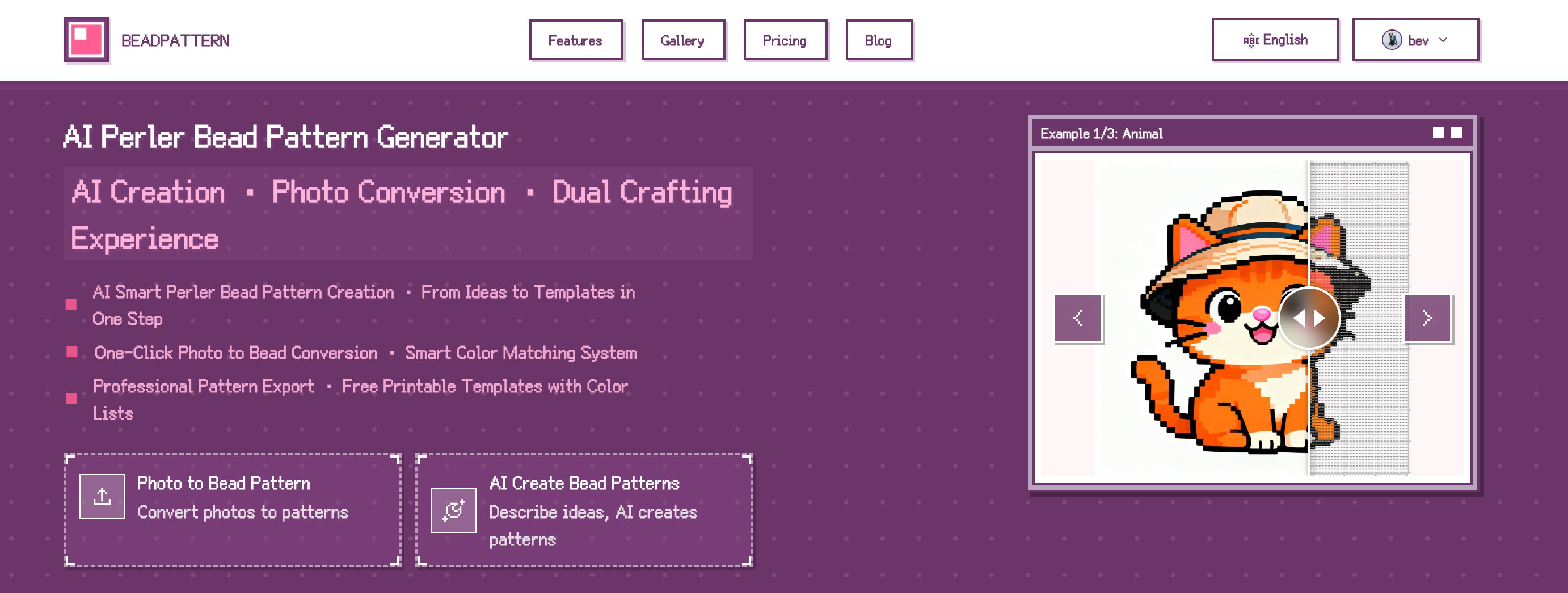
What Problems We Solved
1. Say Goodbye to Black Edges
Traditional software uses RGB averaging when pixelating images—it takes all the pixels in a region and averages their colors. Sounds reasonable, right? But when a region contains both dark and light pixels, the average often turns out to be some muddy gray color. That's where those ugly black edges come from.
BeadPattern uses a dominant color algorithm: the color that appears most frequently in each region is the one that gets used. It sounds like a small change, but the results are dramatic—the black edge problem completely disappears.
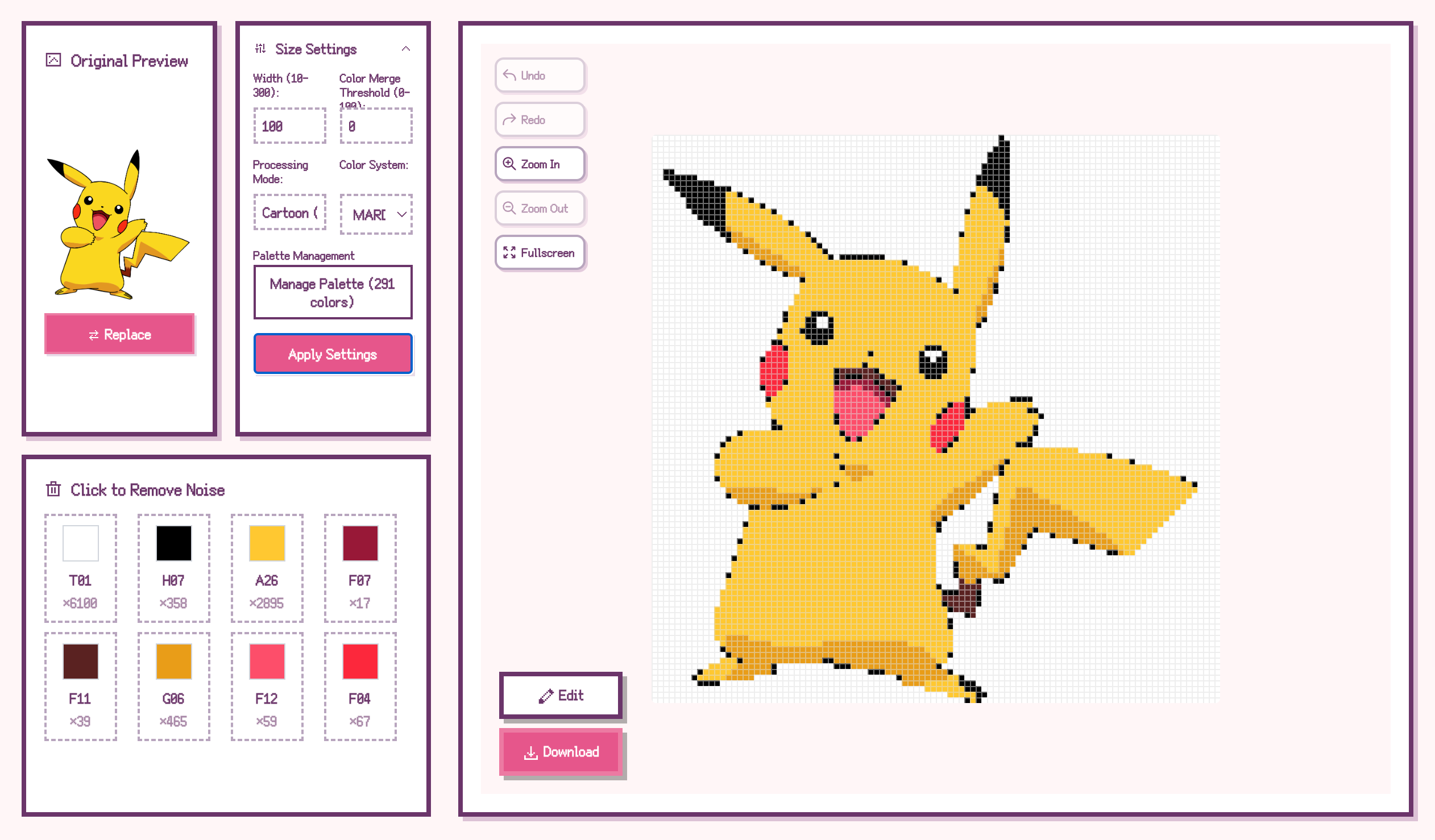
2. Colors That Actually Match
We spent a lot of time compiling color data from major bead brands. Currently, we support 11 brand color systems with a total of 291 standard colors:
Every color has precise RGB values, and the software automatically matches your image colors to the closest bead colors available. Switching between brands is easy too—one click and you can see how the same pattern maps to different color systems.
3. Automatic Noise Removal
We tackle the noise problem using a BFS algorithm. The software automatically identifies adjacent regions with similar colors and merges them into a single color. This produces cleaner patterns without random speckles scattered everywhere.
The merge threshold is fully adjustable:
4. Smart Background Removal
Background removal uses a flood fill algorithm, starting from the image edges to automatically identify and mark background areas. This means background pixels won't be counted in your bead totals—finally, accurate shopping lists.
5. One-Click Shopping Lists
This might be users' favorite feature. After processing an image, the software automatically counts how many beads you need of each color and generates a clear shopping list image:
Save it to your phone and take it to the store. No more counting squares by hand.
6. AI Image Generation
Don't have the right source image? No problem—we've built in AI image generation. Just describe what you want, and AI will generate an image perfect for bead patterns.
For example, type "a cute Shiba Inu, pixel art style" and within seconds you'll get a cohesive image with clean colors, ready to convert into a bead pattern. Perfect for crafters who want to create original designs but aren't confident in their drawing skills.
Full-Featured Editing Tools
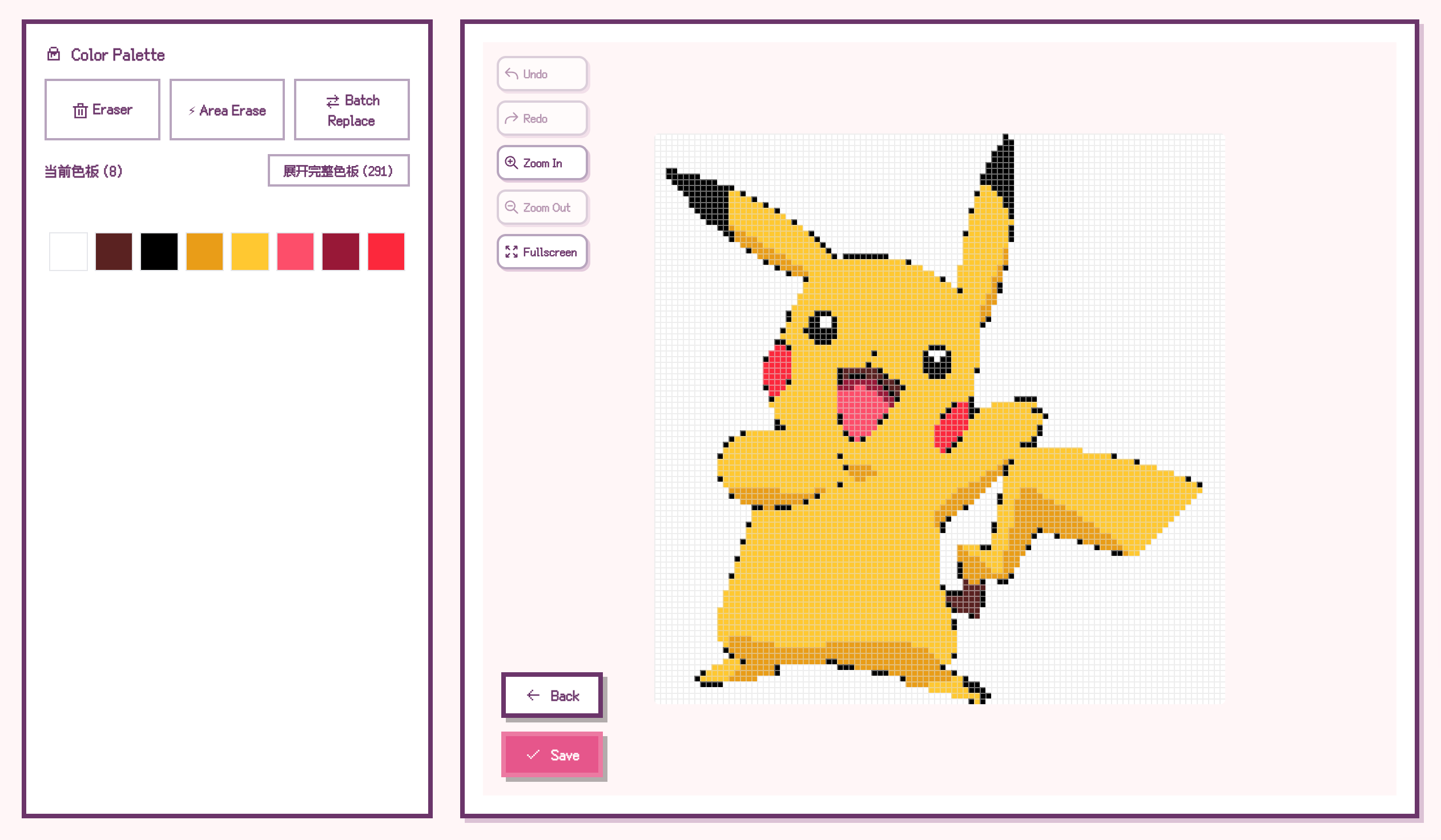
No algorithm is perfect 100% of the time—sometimes you need to make manual adjustments. That's why we provide a complete set of pixel editing tools:
| Tool | Description |
|------|-------------|
| Brush | Color individual cells, supports single clicks and continuous drawing |
| Eraser | Remove incorrect pixels |
| Fill | Quickly recolor large areas |
| Eyedropper | Pick up existing colors from the canvas |
Basically all the pixel editing features you'd expect from Photoshop.
Flexible Controls
Grid Size
Use the slider to control how many cells wide your pattern will be. Higher values mean more detail but more beads; lower values mean simpler patterns, great for beginners.
Color Merge Threshold
Controls how aggressively similar colors get merged. Higher threshold means more merging and cleaner patterns; lower threshold preserves more detail.
Multiple Export Options
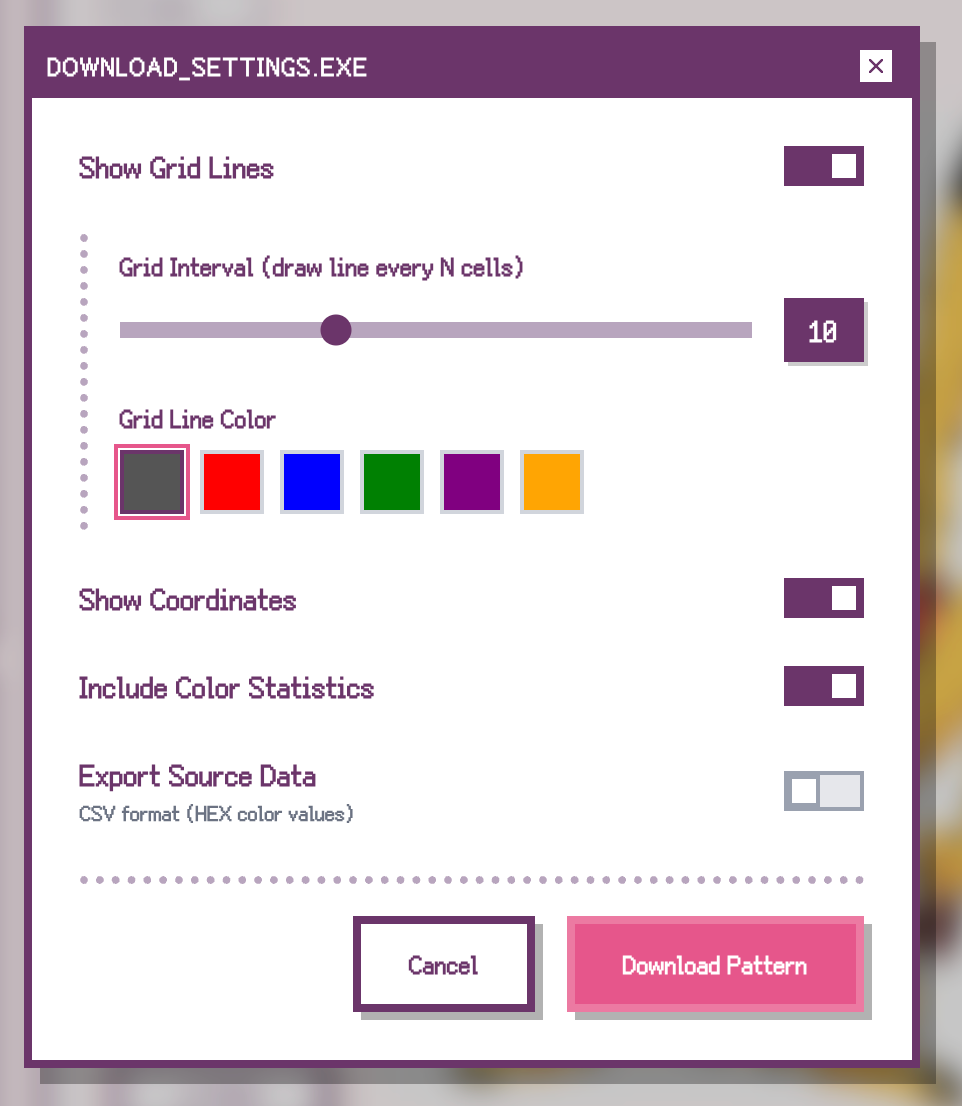
Pattern with Color Codes
Export patterns with color codes labeled in each cell—just print it out and follow along. You can adjust the print size to match your actual pegboard dimensions.
Shopping List
Export a standalone color statistics image for easy reference when buying supplies. Shows color swatches, codes, and quantities at a glance.
Plain Pixel Art
Export the pattern without color code labels—perfect for sharing on social media or as a project preview.
Get Started
1. Go to beadpattern.net
2. Upload an image (JPG or PNG)
3. Adjust grid size and color merge settings
4. Select your bead brand
5. Export your pattern and shopping list
I originally built this tool to make my girlfriend's bead crafting a little easier. Then I realized plenty of other people in the bead community had the same frustrations, so I turned it into a full product.
If it helps you too, that would make me really happy.